

Double 2
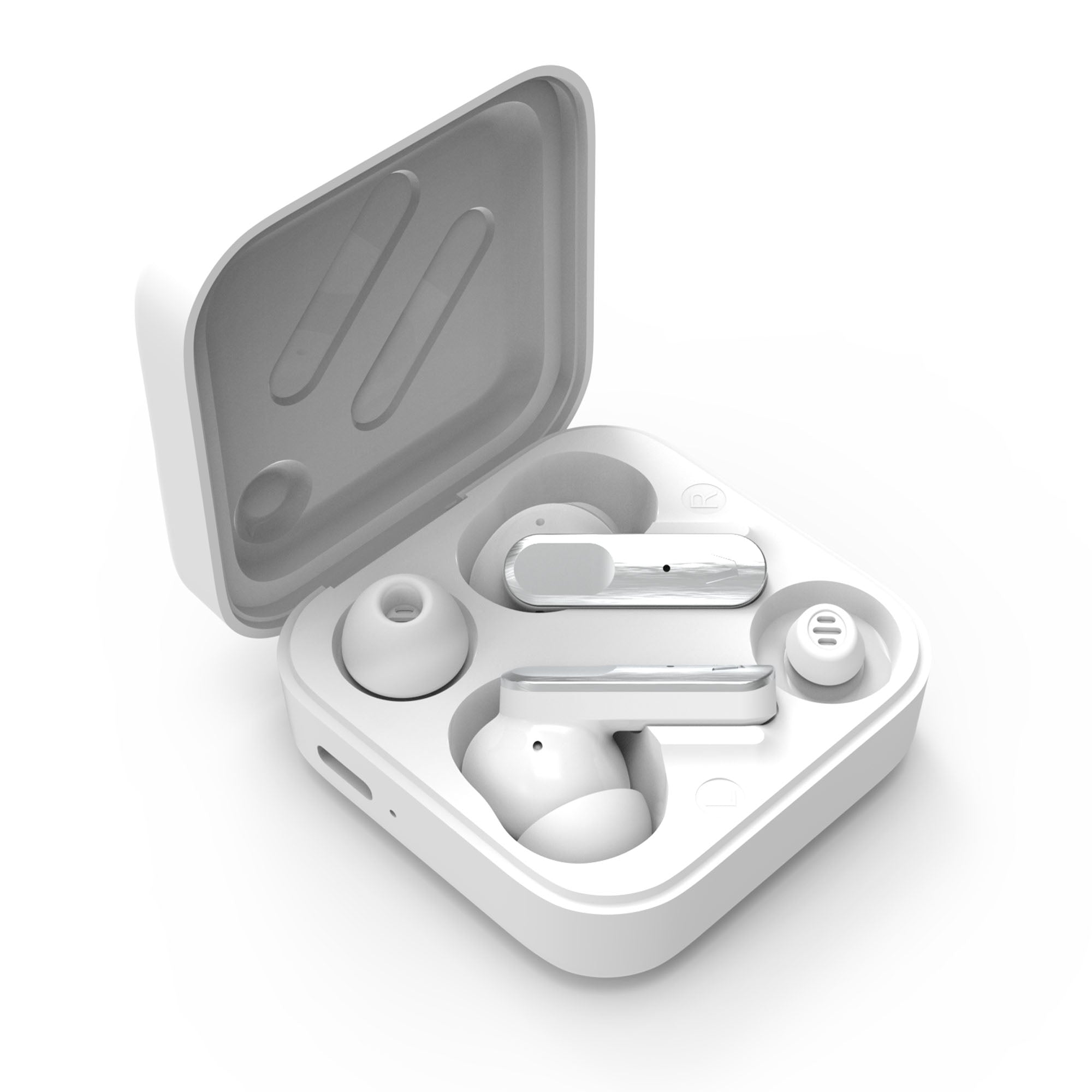
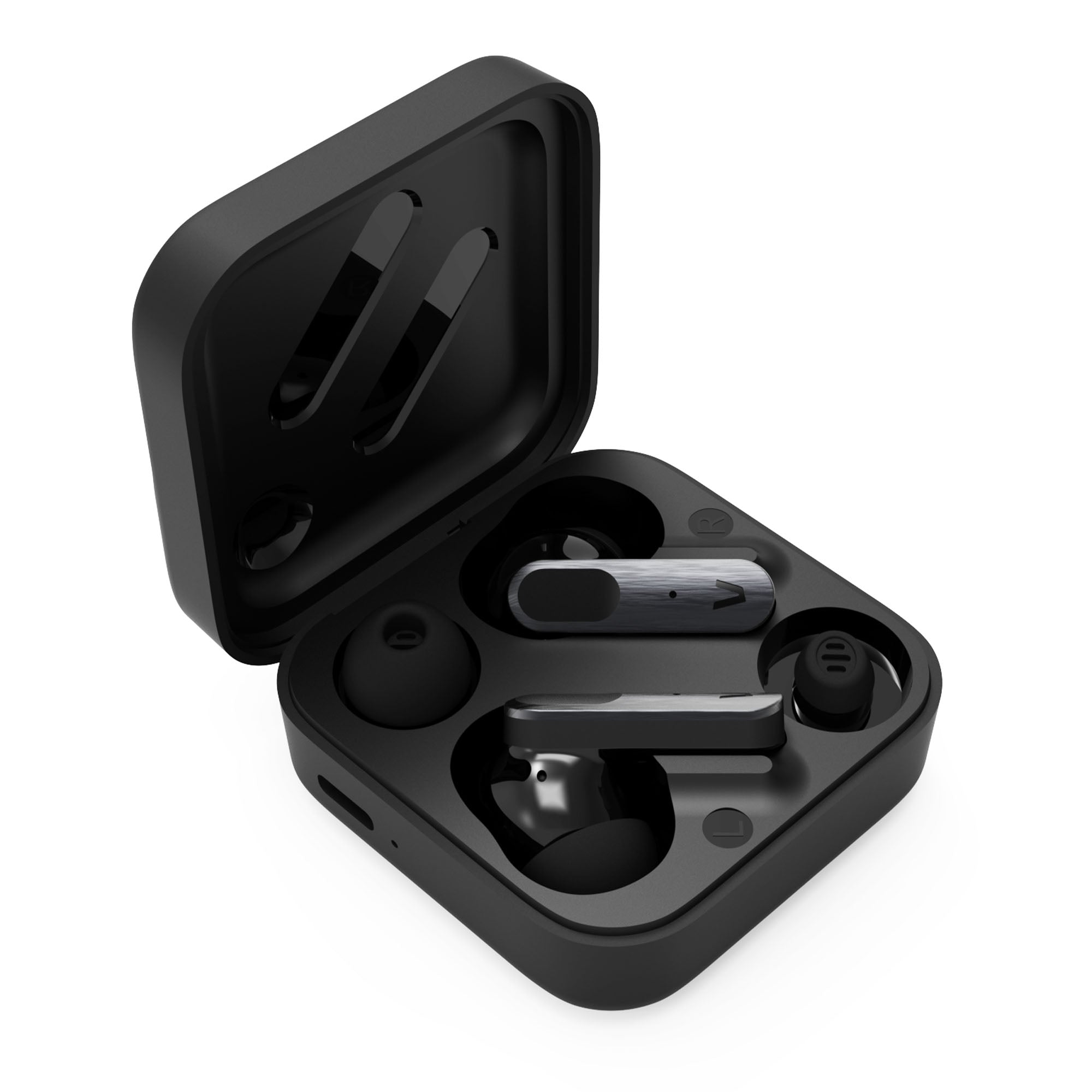
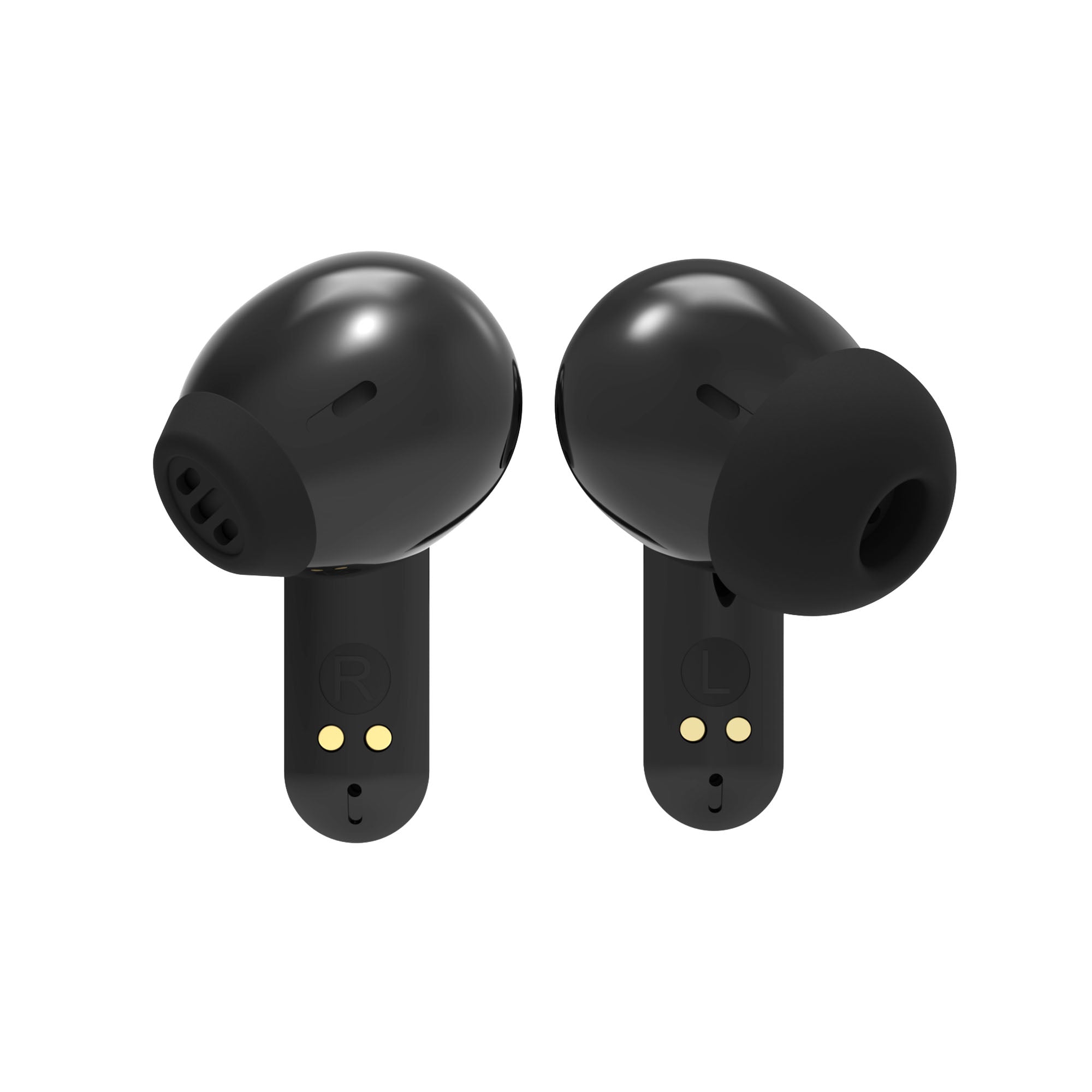
Double 2 are true wireless earbuds you can use with or without ear tips, adapting the fit and isolation to every moment.
- Up to 28 h battery life
- 6 ENC microphones
- Dual Pairing
- Transparency mode
- USB-C charging
One set of earbuds, two ways to wear them
Double 2
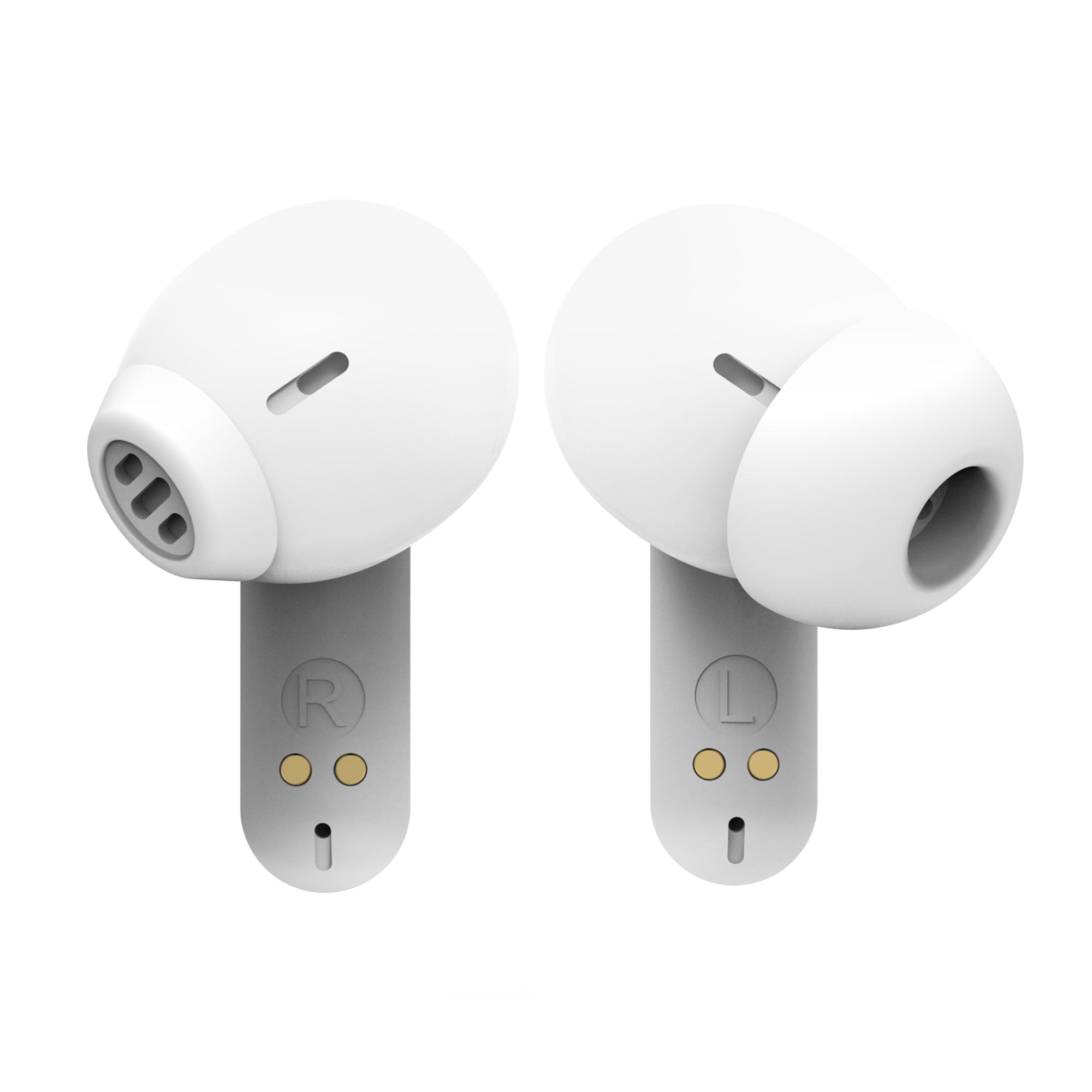
Wear them without ear tips for a more open, comfortable fit, or add them when you want more isolation and a more secure hold.
Bluetooth 6.0
It offers greater speed and energy efficiency, improving connection stability and reducing battery consumption. It also extends range and data transfer capacity for a smoother wireless experience.
Active noise cancelling
Adapt the level of isolation
to how you wear the earbuds: you get -16 dB of noise cancelling when using them without ear tips, or -30 dB with them fitted.
Dual Pairing
Connect two devices at the same time and switch easily between your phone and computer without having to pair them again.
6 ENC microphones
Their 6 microphones with ENC technology reduce ambient noise during calls so your voice comes through more clearly.
Up to 28 hours of battery life
Enjoy up to 28 hours of continuous playback on a single charge, for uninterrupted music and calls. Ideal for all day long without worrying about recharging.
Compatible with the Vieta Pro Audio app
Customise your experience from the Vieta Pro Audio app and adjust features such as the equaliser to your liking.
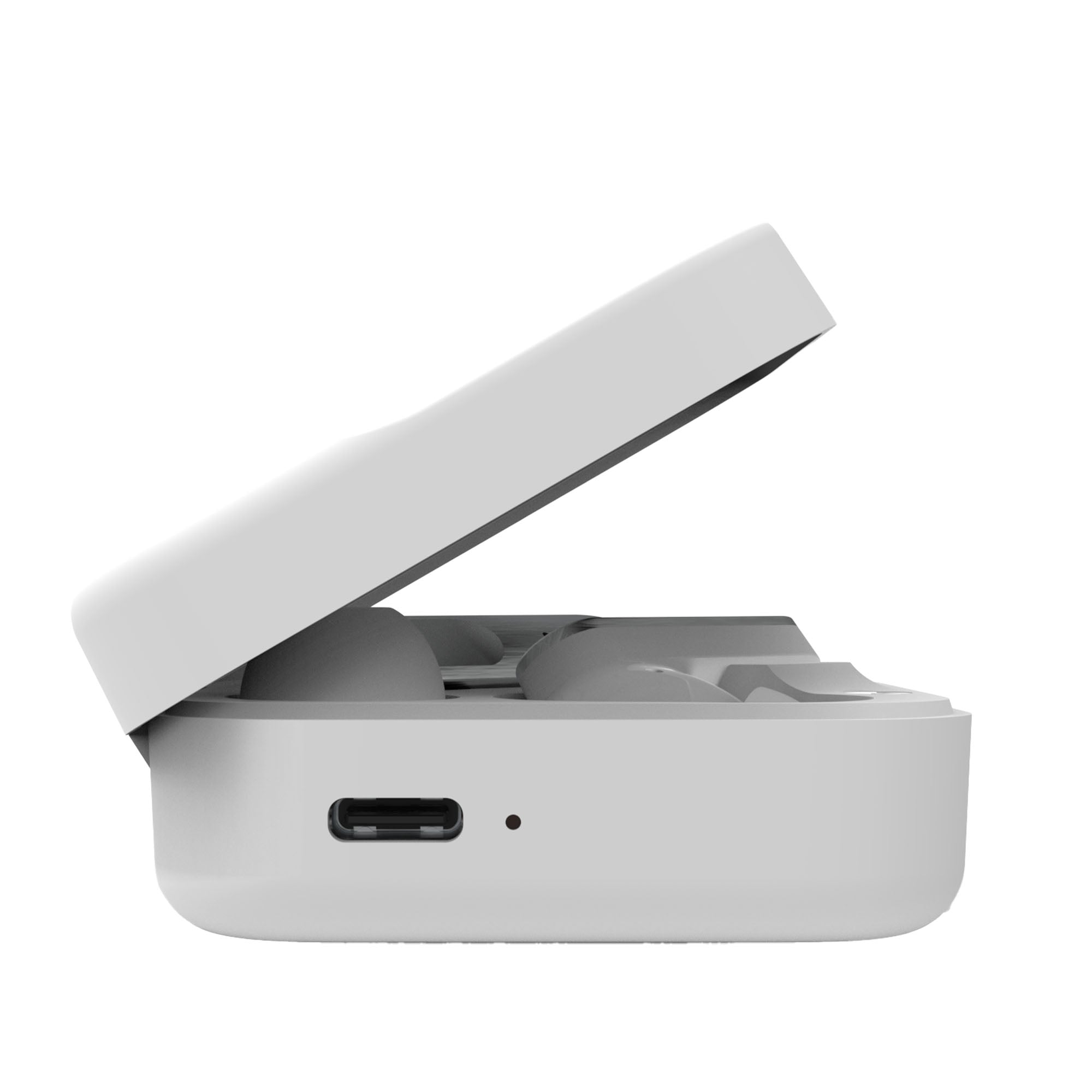
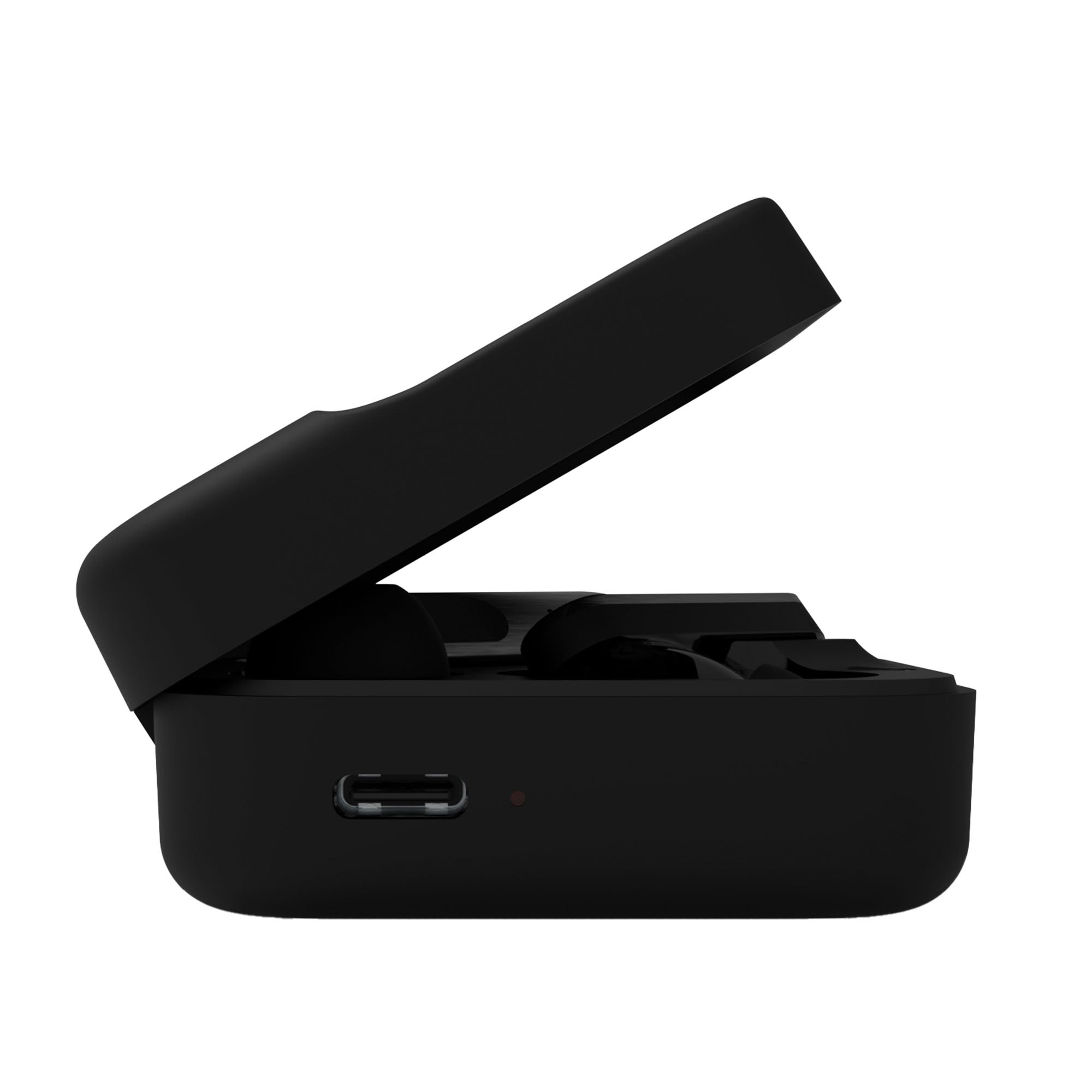
USB-C connection
Recharge the case easily via USB-C.
Charging case
Store and recharge your Double 2 easily so they are ready whenever you need them.
Dual position
Two ways to listen, one set of earbuds.
Technical specifications
6.0
-16 dB or -30 dB (depending on position)
Up to 28 h of battery life
6 x ENC mics
IPX4
Connects to your PC and phone at the same time
Hear your surroundings while wearing the earbuds
FAQ
The device does not appear in the Bluetooth list
Check that Bluetooth is turned on on the source device and refresh the list of available devices if the earbuds do not appear automatically.
IMPORTANT: the earbuds can only be connected to one source device at a time. If they are paired with another device (computer, phone, tablet, etc.), the new source device will not find them. Turn off Bluetooth on the device they are paired with before pairing them with another one.
If they still do not appear, remove the «VIETA PRO DOUBLE» reference from your phone or source device and pair them again from scratch. On Android, tap the arrow or gear icon next to the reference and choose «Forget».
The earbuds do not charge
Remove the protective plastic film that prevents contact between the earbuds' charging pins and the case. Check whether the earbuds' LEDs light up blue when you open the case.
If they do not light up, clean the contact pins on the earbuds and the case with a cloth dampened with alcohol.
Then remove the «VIETA PRO DOUBLE» reference from the Bluetooth settings of the device they are paired with, take the earbuds out and pair them again.
Double or duplicated device entry
If you can only hear audio through one earbud, remove the «VIETA PRO DOUBLE» reference, turn off Bluetooth on the source device and reset the earbuds:
• With the earbuds unpaired from the source device, tap the sensors on both earbuds 5 times in a row. You will see the LEDs go off; if you are wearing them, you will hear a tone and «Power Off».
• Put them back in the charging case, wait 10 seconds and take them out again to switch them on.
• The LEDs on both earbuds will light up blue and then one of them will go off: this means they are now connected to each other.
• Search for and pair «VIETA PRO DOUBLE» in your device's Bluetooth settings.
One earbud sounds quieter than the other
Clean the earbuds' sensors and grilles regularly to prevent the audio output from becoming blocked.
The sensors do not work properly
Wipe the touch area of the earbuds with a cloth dampened with alcohol to remove the grease that builds up from touching them with your fingers (dust, sweat, creams, etc.).
The volume is low
If you have an Android device, remember that you need to turn the volume up or down while a media file (song, video, etc.) is playing. Then adjust it using the touch sensors on the earbuds and on the source device (mobile phone, tablet, computer, etc.).
Clean off any excess earwax that may have built up on the grille and wipe the sensors with a cloth dampened with alcohol.
To keep the earbuds in perfect condition, carefully clean the grilles once or twice a month.
During calls, I hear the other person or they hear me very quietly
Turn the volume up on the source device (mobile phone, computer, etc.) during the call. If you touch the earbud sensors during the call, you may end it.
Check on the screen of the source device that the audio output is set to the Bluetooth device and not to the phone's speakers.
The earbuds' battery runs out quickly
Battery life depends on usage time, ambient conditions and volume. The stated battery life is based on use at 50% volume.
To extend the battery's lifespan, fully charge it at least once every 3 months, even if you are not using the earbuds.
Answering calls or sending voice messages with third-party messaging apps (WhatsApp)
On Apple devices, the earbuds work just as they do with phone calls, and the earbud microphone is used when sending voice messages.
On Android devices, internet calls must ALWAYS be answered on the phone before you can talk through the earbuds. When sending voice messages, the phone's microphone is used by default.
The microphone does not work on my computer
Update your computer's Bluetooth drivers. We recommend using the «Headphones» audio option, which offers higher quality. To enable the microphone, choose «Headphones with Mic», but bear in mind that sound quality will be lower.
In Windows, you will find this option by clicking the speaker icon at the bottom right of the taskbar.
How do I fit and remove the ear tips?
To remove the ear tip, pull the soft rubber part outwards.
To fit it, turn the rubber inside out so that it is stretched over the rigid part, forming a cone. Insert the rigid part into the earbud and fold the rubber back into place.
If the charging case is lost
You can buy a new charging case and use it with your earbuds. Contact our after-sales department: info@vieta.es.